
Step-by-step guide
How to Make a Bulin 47 AI Video: Photo, Settings, Posting
Make a Bulin 47 AI video from one photo: what you need, the five steps, how to choose length, resolution and frame, photo tips, and how to post it.
7 min read · Last updated: 2026-10-12
To make a Bulin 47 AI video, upload one clear photo of yourself, choose a length (5, 12 or 23 seconds), a resolution and a frame, and press generate. An AI model creates a new freestyle rap video of you in a few minutes, and the credit cost is shown before you start.
Key points
- One clear, front-facing photo of an adult who agreed is the only input you need.
- A full 23 second video at standard 480p costs 100 credits, one $9.99 pack. A 5 second test costs 22 credits.
- The result is a new AI video similar to the viral clip, not identical and not an edit of it, so label it as AI when you post it.

Your photo
What do you need before you start?
You need three things: a photo, an account and credits. The photo can be a JPG, PNG or WebP file up to 10 MB, and it should show one adult, either you or someone who clearly agreed to appear. An account lets the tool keep your videos in one place. Credits are prepaid points: each video uses a fixed number of them, shown on the page before you press generate, much like tokens at an arcade (that is only an analogy, credits never expire and failed renders return them). The home page, pricing and My videos are all you will use. You do not need editing software, a script or any prompt, because the tool uses one fixed description of a scene similar to the viral clip and builds the video around your face.
- 1
Photo
One clear face, an adult who agreed
- 2
Account
Keeps your videos in My videos
- 3
Credits
From 22 credits per video
- 4
Generate
Ready in a few minutes
- JPG, PNG or WebP
- Up to 10 MB
- One face
- Adult who agreed
How do you make the video, step by step?
Making a Bulin 47 AI video takes five steps and no more than a couple of minutes of your own time. You pick a photo, upload it, confirm that you have permission to use it, choose the length, resolution and frame, and press generate. The confirmation is not a formality: we record that you ticked it, together with the time, because a face is personal data and the person pictured must be an adult who agreed. After you press generate the credits are taken once and the AI builds your video in the background. If you close the page nothing is lost, because the finished MP4 appears in My videos and you can download it from there.
Pick a clear photo
Sharp, evenly lit, the whole face looking toward the camera.
Upload it and confirm permission
Tick the box saying the photo is of you or of an adult who agreed, and not a public figure.
Choose length, resolution and frame
The credit cost updates as you choose and is shown before you commit.
Generate
Credits are taken once. A failed or rejected render returns them automatically.
Download and post
Save the MP4 from My videos, review it, and share it with an AI label.
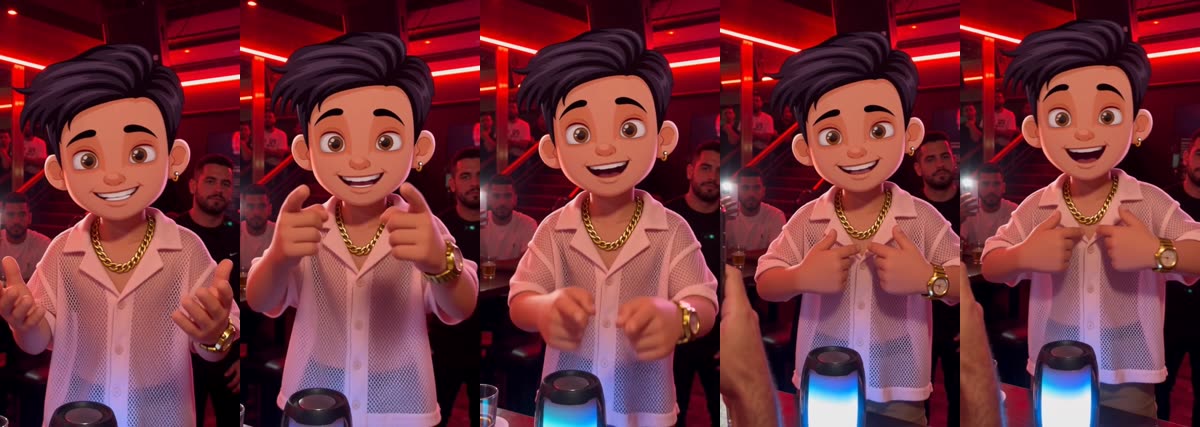
Which length, resolution and frame should you choose?
Length and resolution set the price; the frame only sets the shape. A 5 second clip is the cheapest way to see how your photo looks, 12 seconds fits a verse, and 23 seconds is the longest option and gives the most room for the scene. Resolution is sharpness: 480p is the standard quality and costs less, 720p HD looks cleaner on a phone screen for about 2.25 times the credits. The frame is where you plan to post. Choose 9:16 for TikTok, Instagram Reels and YouTube Shorts, 1:1 for a square feed post and 16:9 for a wide clip. Switching frame never changes the cost. A sensible first run is 5 seconds at 480p, then spend more once you like what the model does with your face.
TikTok, Reels, Shorts
Square feed posts
Wide clips, YouTube
5 seconds
12 seconds
23 seconds
| Length | 480p | 720p |
|---|---|---|
| 5 seconds | 22 credits | 49 credits |
| 12 seconds | 52 credits | 117 credits |
| 23 seconds | 100 credits | 225 credits |
Test it cheaply
5 seconds, 480p
- 22 credits, four tests from one $9.99 pack
- Shows how the model handles your face
- Good for checking a new photo
Make the keeper
23 seconds, 480p
- 100 credits, one $9.99 pack
- Longest option at standard quality (720p HD is sharper, 225 credits)
- Best for the version you will post
How do you get a photo that looks like you?
The photo decides most of the result, so choose it carefully. The model reads the face it is given and rebuilds it in motion, which means a sharp, evenly lit, front-facing photo gives a face that is easier to recognise. Strong shadows, sunglasses, masks, hands in front of the face and heavy beauty filters all make the model guess. Use one person only, because a group photo leaves it unclear who should be performing. A plain background helps too. If the first result drifts from your face, try another photo or a longer clip rather than repeating the same one, since each render is generated fresh and no two results are identical.
Do
- Sharp photo, even light on the face
- Whole face, looking at the camera
- One adult who agreed
- A natural, unfiltered look
Avoid
- Sunglasses, masks, hands over the face
- Group shots and tiny faces
- Heavy beauty filters
- Photos of minors or public figures
How do you post it, and what if something goes wrong?
Download the MP4 from My videos and post it where you like. Label it as AI generated, because viewers should know the performance is synthetic, and major platforms ask creators to disclose realistic AI content. Keep it to personal, non-commercial use. If something does go wrong, most problems have a quick fix, and the credit side is automatic: a failed or rejected render returns its credits without you asking. The rules about who may appear in a video are in the Acceptable Use Policy, refunds are covered in the Refund Policy, and the background to the trend is in the Bulin 47 AI trend explained.
| Problem | Likely cause | What to do |
|---|---|---|
| Photo rejected | The provider's safety filters said no | Use a clearer, front-facing photo of an adult. Credits return automatically. |
| It does not look like me | Angle, light or filters in the photo | Try a sharper photo or a longer clip. |
| Taking a long time | The AI queue is busy | Check My videos. A failed render refunds itself. |
| Charged but no credits | A payment hiccup | Write to us with your order ID. |
Ready to try it?
Upload one photo, pick a length and see the price before you generate. Failed renders are refunded automatically.
Make my video →Frequently asked questions
- Can I make a Bulin 47 AI video for free?
- No video is free. The cheapest render is a 5 second, 480p clip at 22 credits, and the smallest pack is $9.99 for 100 credits, enough for four of those test clips or one full 23 second video. There is no subscription.
- How long does it take to get the video?
- Usually a few minutes, longer when the AI queue is busy. You can close the tab and come back: finished videos wait in My videos, and a render that fails returns its credits on its own.
- Which AI model makes the video, and what happens to my photo?
- The video is generated with Seedance 2.5 from ByteDance through the Kie.ai API platform. Your photo is used only to make the video, is not used to train models, and is deleted automatically 7 days after upload.